
User guide / Use AI with your own key
Use AI with your own key
AI Chat Vault can summarize a chat and answer questions about everything you have saved. It is free. It works with an AI key that you get from an AI provider.
What it is
- Summarize a chat, or a whole project. You get a few key points. Each point is checked against your messages, and any point that cannot be found in the chat is thrown away.
- Ask my vault: type a question like "What did we decide about the database?". You get a short answer with links to the chats it came from. If the answer cannot be backed up by your chats, you get the matching passages instead.
Why your own key?
An AI key is like a library card for an AI provider. When you use your own, the work happens on your own account. We have no AI servers, nothing passes through us, and you choose who sees your chats. You pay the provider directly, by usage. A summary of an ordinary chat usually costs a fraction of a cent. Some providers have a free tier.
Before you start
Nothing is sent until you press an AI button (Summarize this chat, Summarize this project or Ask). Then the text of that chat, or for a question the few matching passages and the question, goes straight from your browser to the provider you chose. It goes nowhere else, and we never see it. Your provider handles it under your own agreement with them. Without a key, nothing is ever sent.
Set it up
Open Settings, then AI.
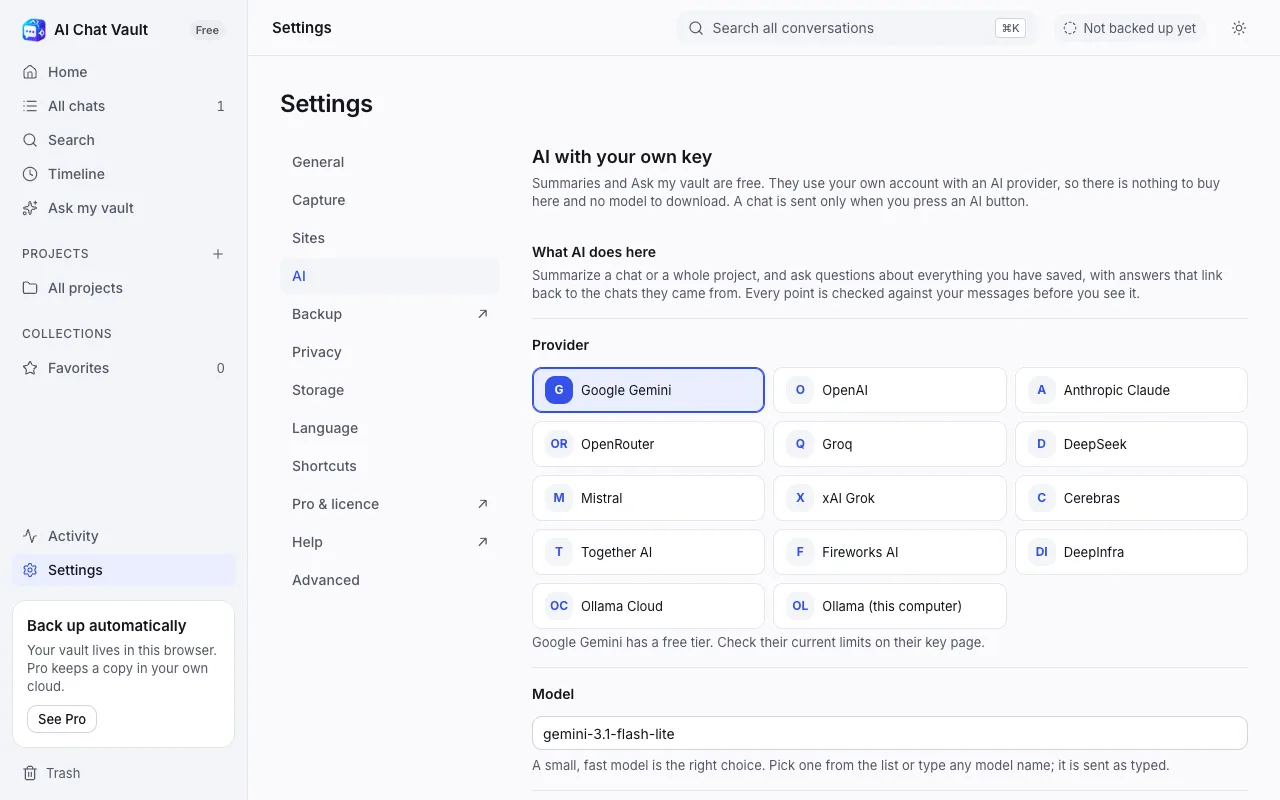
Pick a provider. If you are not sure, pick Google Gemini. It has a free tier and is the quickest to set up.
Click the link under the key box, Get a key. Your provider's page opens in a new tab. Follow the steps below for your provider, then copy the key.
Paste the key into the API key box. The box hides what you type.
Leave the model as it is. A small, fast model is the right choice. You can type another model name if you want to.
Click Save and test. Chrome asks once to let AI Chat Vault talk to that provider. Click Allow. We ask for that one site only.
You should see It works. Now open any chat and click Summarize this chat, or open Ask my vault in the left menu.
Get a key: Google Gemini (free tier)
Go to aistudio.google.com/apikey and sign in with your Google account.
Click Create API key and choose a project (or let it make one).
Copy the key. It starts with AIza.
The free tier has daily limits that Google may change, and Google may use free-tier prompts to improve its products. If that matters for your chats, use a paid key or another provider.
Get a key: OpenAI
Go to platform.openai.com/api-keys and sign in.
Add a little credit under Billing. OpenAI keys do not work without it.
Click Create new secret key and copy it. It starts with sk-. OpenAI shows it only once.
Get a key: Anthropic
Go to console.anthropic.com/settings/keys and sign in.
Add a little credit under Billing.
Click Create Key and copy it. It starts with sk-ant-.
Get a key: OpenRouter
Go to openrouter.ai/keys and sign in.
Click Create Key and copy it. It starts with sk-or-.
One OpenRouter key reaches many models. Some are free: type a model whose name ends in :free in the Model box.
Use Ollama on your own computer
With Ollama nothing leaves your computer and there is nothing to pay. It needs a computer that can run a small model.
Install Ollama from ollama.com/download and run it.
In a terminal, run ollama pull llama3.2 to download a small model.
Start Ollama with the setting OLLAMA_ORIGINS set to chrome-extension://*, so it accepts requests from the extension. Without this, Ollama refuses them.
In AI Chat Vault choose Ollama (this computer). No key is needed. Click Save and test.
Small local models write rougher summaries, and Ask my vault may fall back to showing the matching passages more often.
Other providers
The list also has Groq, DeepSeek, Mistral, xAI, Cerebras, Together AI, Fireworks AI, DeepInfra and Ollama Cloud. They work the same way: pick one, use its Get a key link, paste, save.
Keep your key private
- The key is stored only in this browser. It is never synced to other computers, and never included in a backup or an export.
- Anyone who has your key can spend your credit. Do not paste it into chats or emails.
- To remove it, open Settings, then AI, and click Remove key. It is deleted from this browser and Chrome's permission for that provider is given back. You may also delete the key on your provider's page.
If something goes wrong
- "did not accept that key": the key was copied wrongly, was deleted, or belongs to another provider. Make a new one and paste it again.
- "no credit or quota left": add credit on your provider's billing page, or wait for a free tier limit to reset.
- "limiting how fast you can ask": wait a minute and try again. Free tiers have low limits.
- "doesn't have a model with that name": pick a model from the list in the Model box.
- "Could not reach": check your internet connection. For Ollama, check that it is running.
- "Chrome no longer lets this extension reach": the permission was removed. Click Save and test again and allow it.
- Ollama refused this extension: restart Ollama with OLLAMA_ORIGINS set to chrome-extension://*.
- "No point could be checked": the model wrote points that are not in your chat, so none were saved. Try again, or pick a stronger model.