User guide / Organize your chats
Organize your chats
You do not have to organize anything. But if you want to, these four tools help.
- Favorites are chats you want to find fast.
- A tag is a label. A chat can have many.
- A project keeps the chats about one piece of work together, like a client or a course.
- A collection is a hand-picked list, like "Best answers".
Add a chat to Favorites
Open a chat from All chats.
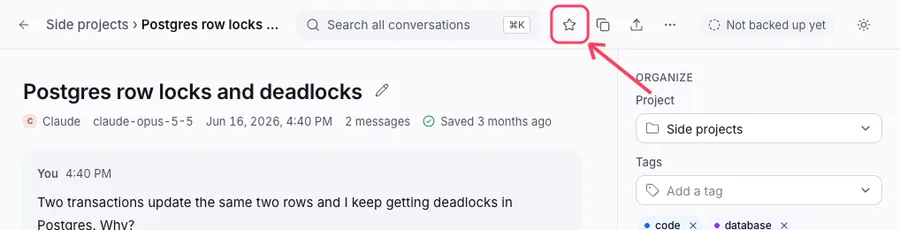
Click the star at the top. It is called Add to Favorites. Click it again to remove it.
Add a tag, a project or a collection
Open a chat.
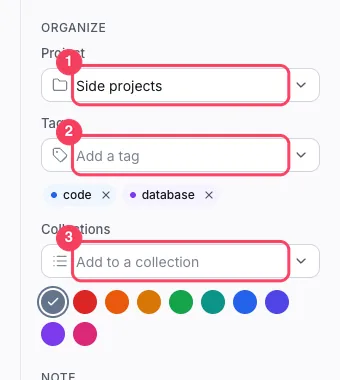
On the right, under ORGANIZE, pick a project. Type in the box Add a tag to add a tag. Use Add to a collection to pick a collection.
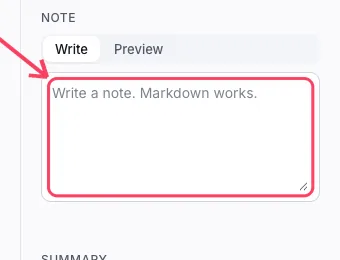
Want a note to yourself? Type it in the Note box below. It is saved with the chat.
Create a new project, tag or collection
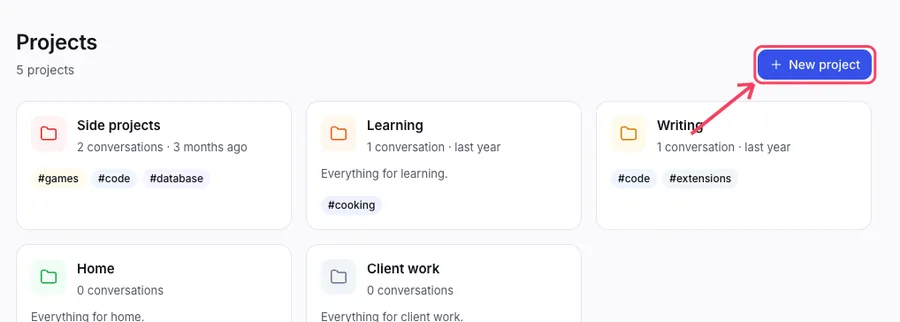
Open All projects in the left menu and click New project. Tags and collections work the same way: use New tag and New collection.
Many chats at once
Tick the box on each row in All chats. A bar appears at the bottom. Use it to tag, move or archive them all together.
Pin, archive and Trash
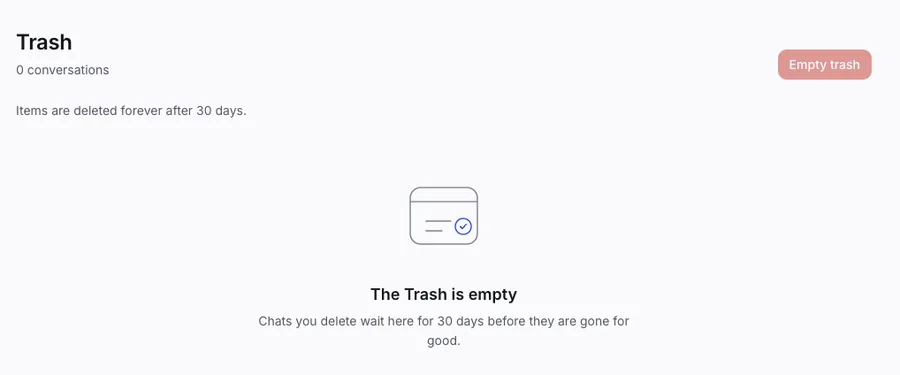
Pin keeps a chat at the top. Archive hides it from the main list but keeps it. Delete moves it to the Trash, where you can restore it. Chats in the Trash are deleted for good after 30 days.