User guide / Finding a chat
Finding a chat
Type a few words and the right chat appears. This works across every AI.
Search
Open your vault. Click Search all conversations at the top. Or press Ctrl + K (on a Mac: ⌘ + K).
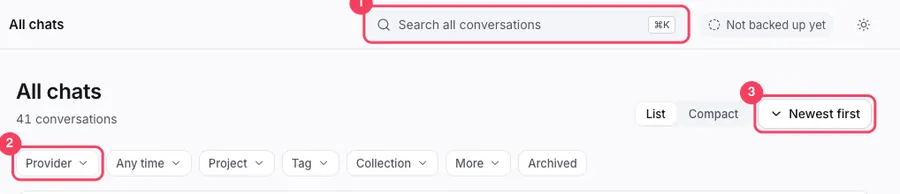
Type a few words from the chat. Results appear as you type. Search looks at titles and at everything said in the chat.
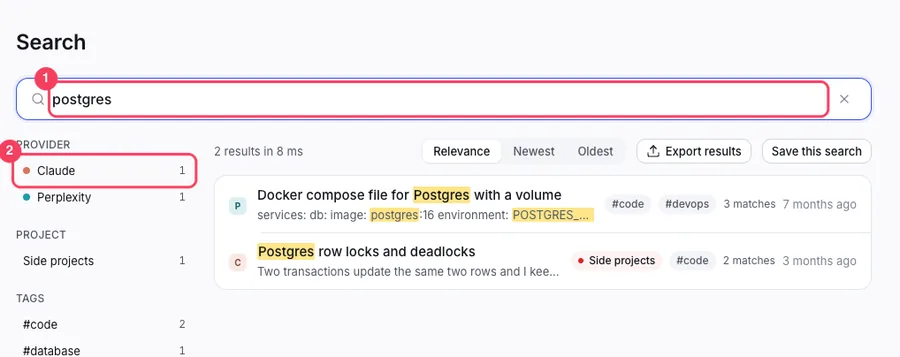
Click a result to open the chat.
Narrow it down
Use the filters on the left of the results: which AI, which project, which tag, or how recent. You can also type a filter into the search box. Write a word, a colon and a value:
provider:claudeshows only Claude chats.tag:reactshows chats with the tag react. Put a minus in front (-tag:old) to leave a tag out.after:30dshows the last 30 days. Use d for days, w for weeks, m for months and y for years.has:codeshows chats that contain code.- Put words in quotes, like
"exact phrase", to find them together in that order.
Try provider:claude after:30d.
The timeline
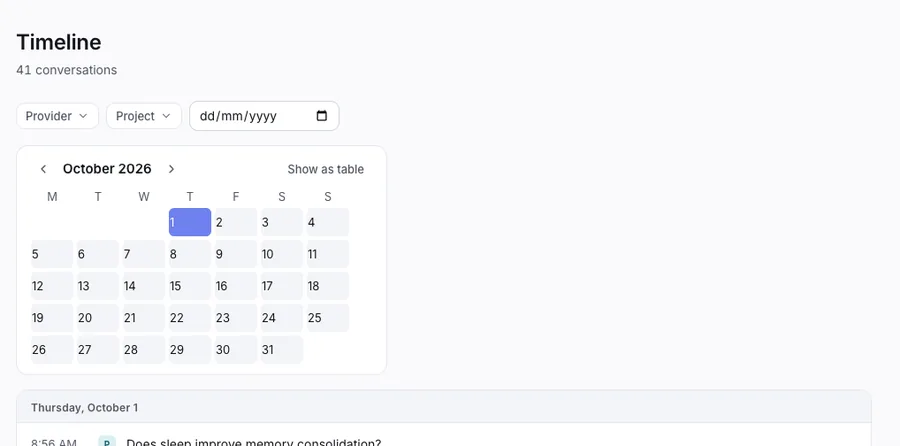
Click Timeline in the left menu. A calendar shows the days you used an AI. Click a day to see its chats.