
User guide / Install and pin
Install and pin
This takes about a minute. You do not need an account.
Open the AI Chat Vault page in the Chrome Web Store. The link is on the home page of this site, under the button Add to Chrome. You need Google Chrome on a computer. It does not work on phones.
Click Add to Chrome. Chrome asks if you are sure. Click Add extension.
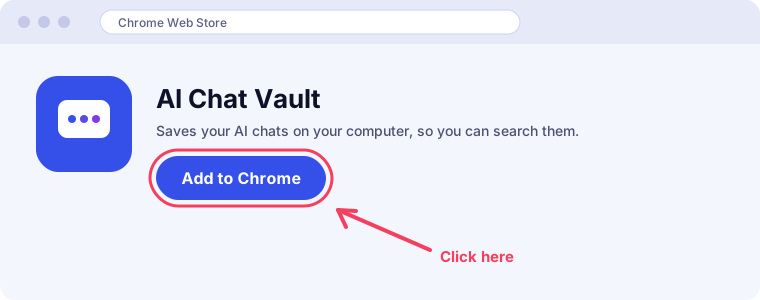
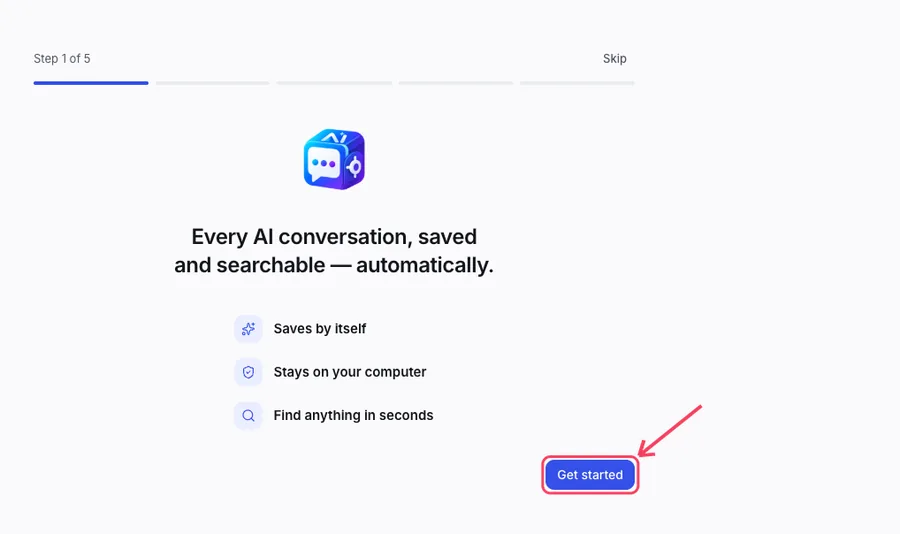
An illustration of the store page. Your screen may look a little different. A new tab opens with a short welcome. Click Get started and follow the steps. You can click Skip if you are in a hurry.
Now pin the icon so you can always see it. Click the puzzle-piece icon at the top right of Chrome. Find AI Chat Vault in the list. Click the pin next to it.
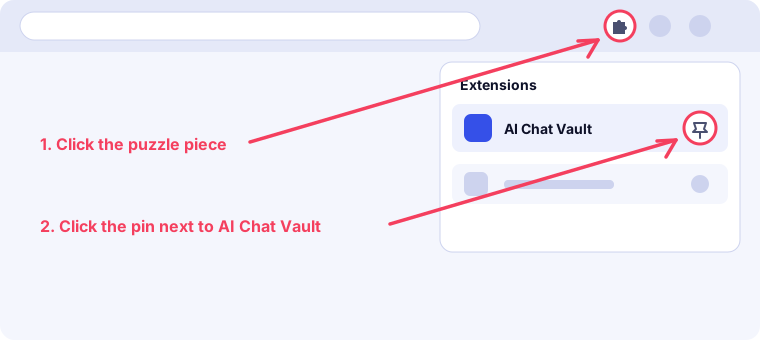
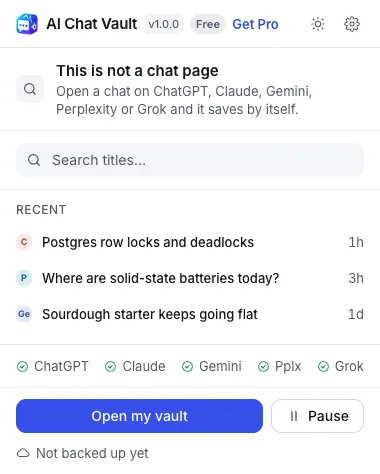
An illustration of the Chrome toolbar. The AI Chat Vault icon now stays in your toolbar. Click it any time to see what was saved and to open your vault.
The first time you use a site such as Claude or Gemini, Chrome may ask to let AI Chat Vault work on that site. Click Allow. Without it, chats from that site cannot be saved.