
User guide / Backup and restore
Backup and restore
Your vault lives in your browser. If you remove the extension, or clear its data, the vault goes with it. A backup is the safety net.
Back up to a file
In the left menu, open Settings, then Backup. Or click the "Not backed up yet" label at the top.
Click Download backup. One file is saved with all your chats, tags, projects and collections.
Keep the file somewhere safe, like an external drive.
Restore from a file
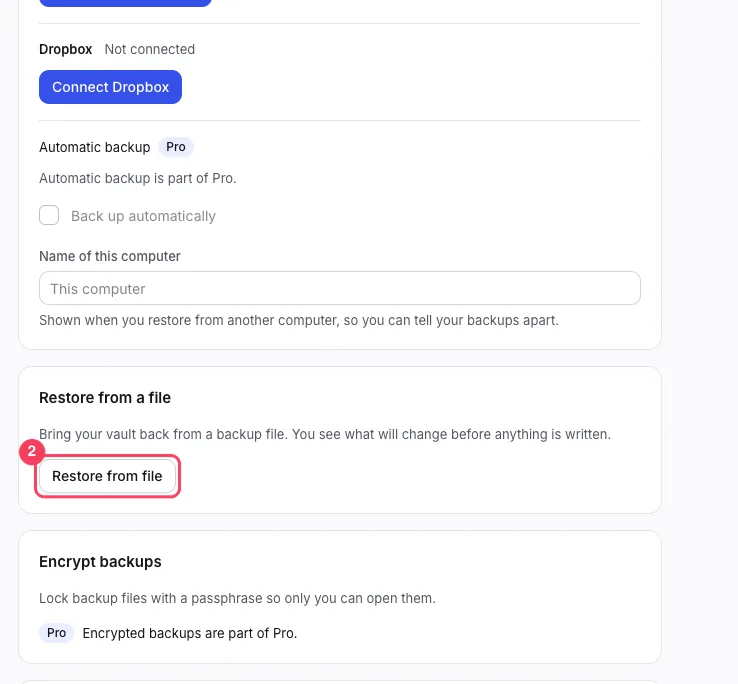
Open the Backup screen again and click Restore from file.
Pick your backup file. AI Chat Vault shows what will change before it writes anything.
Confirm. Your chats come back. Restoring is always free.
Move to a new computer
On the old computer, make a backup file as above.
Copy the file to the new computer, with a USB drive or your own cloud drive.
On the new computer, install AI Chat Vault (see Install and pin).
Open the Backup screen, click Restore from file and pick the file.
Encrypted backups
With Pro you can lock a backup with a passphrase that only you know. Click Turn on encryption on the Backup screen. Write the passphrase down. We cannot recover it for you.
With Pro you can also back up to your own Google Drive or Dropbox, by hand with Back up now or automatically. Restoring from your cloud is always free. A file backup stays free for everyone.